
Choose a voice, give it a name and explain the task in words, as you would to a new employee. Then it calls your list, talks to people and brings back the results on its own.
Try it free →
It’s not an answering machine with a recorded message, and not a scenario with “press 1” buttons. It’s a conversation partner that hears the person and answers to the point: it asks again if it didn’t catch something, handles an objection, understands “I can’t talk right now” and says goodbye instead of reading the text to the end.
The difference is in how a modern model works. The usual chain (recognize speech as text, send the text to a neural network, synthesize a voice reply) loses everything except the words: intonation, pauses, hesitation in the voice. Our agent works directly with sound: the sound wave goes into the model as is, and ready speech comes back out of it. That’s why it hears when a person hesitates, notices when it’s interrupted, and replies with almost no pause, like in a live conversation.
And it thinks about its answer instead of inserting canned lines. It will ask the same question differently to two different customers, depending on what they said before. That’s why building an agent is more creative work than technical: you don’t draw a flowchart, you explain the task in words, as you would to a new employee on their first day.
 AigerimWarm
 MaratGravelly
 AliyaYouthful
 GlebInformative
All of this happens right during the call, without interrupting the conversation.

At the same time. It understands Russian and Kazakh and switches between them mid-conversation, following the other person.

You say which fields you need, such as city, address, readiness to buy. The agent fills them in as the conversation goes, and you export them to Excel.

Using text agreed in advance, when the customer asks for details. The text is fixed; the agent doesn’t rewrite it.

A GET or POST request right in the conversation: check a balance, availability or request status, and read the answer to the customer.
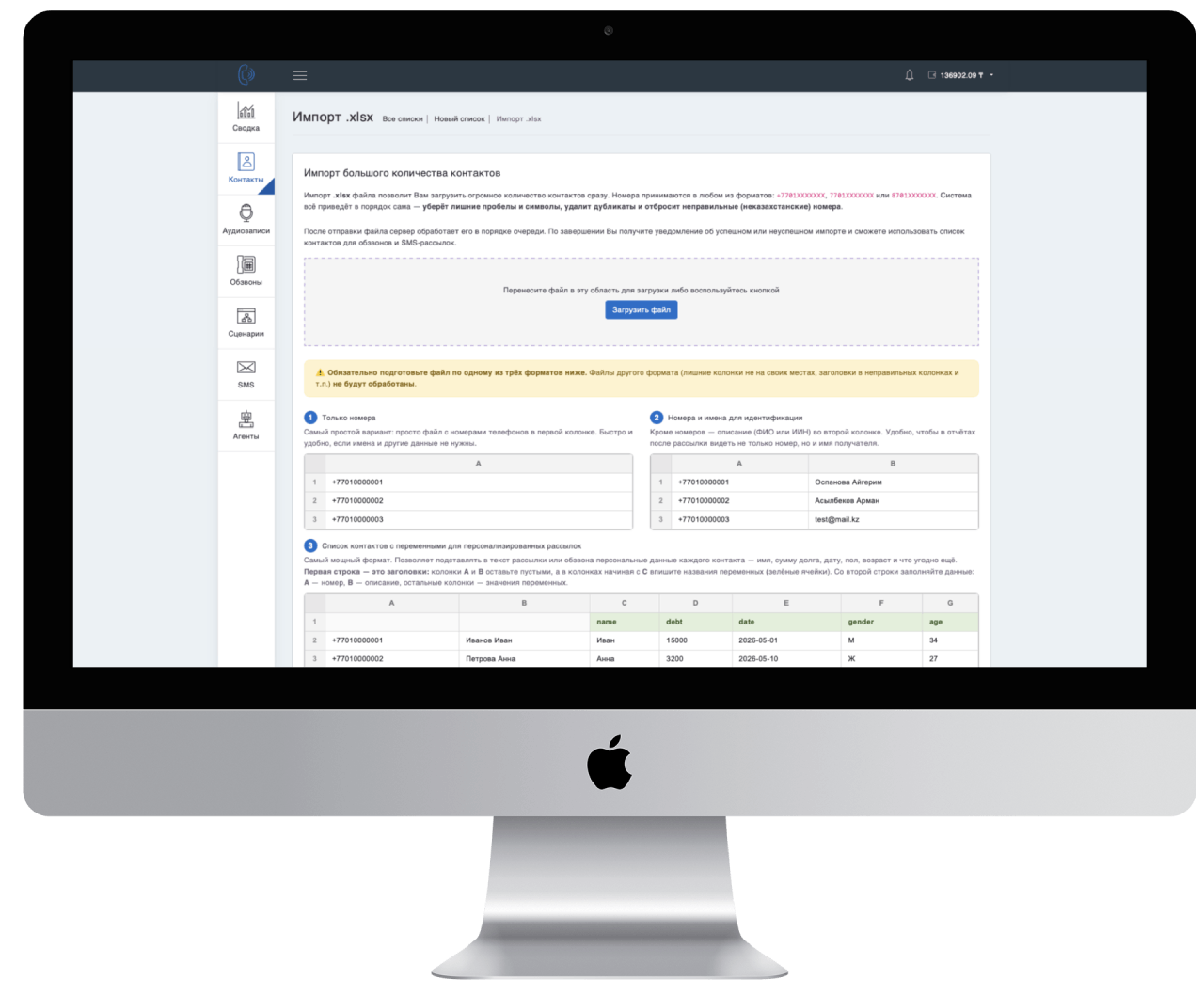
The Contacts section of your dashboard. You can simply paste numbers from the clipboard: copy a column in Excel, press Ctrl+V in the field, done. Or upload the whole Excel file if the list is large.
If you want the agent to address people by name or mention their order amount, add extra columns to the file. These are called variables, and they work the same way as in regular campaigns and SMS: how to use variables.
The Agents section → “Create”. Three short steps.
30 voices are available: male and female, with Kazakhstani pronunciation. Listen right here:





This is the name it will introduce itself with in the first line: “Hello, my name is Marat, I’m calling from…”. A name affects the impression more than you might think: a local, simple name sounds more trustworthy. Changed your mind? You can rename it at any time, and the agent will update its name in the scenario itself.
Your agent will introduce itself to your customers with this name at the start of the conversation.

The most important step, and the simplest. A chat with an assistant opens, and you tell it in plain words who you’re calling and why. The assistant asks about anything you missed and builds a ready scenario from the conversation. It looks roughly like this:
Then you click “Test”, and the agent calls you right in your browser. Talk to it like a regular customer, listen for where it sounds awkward, go back to the chat and fix it. Test calls are free, so you can iterate as many times as you like.
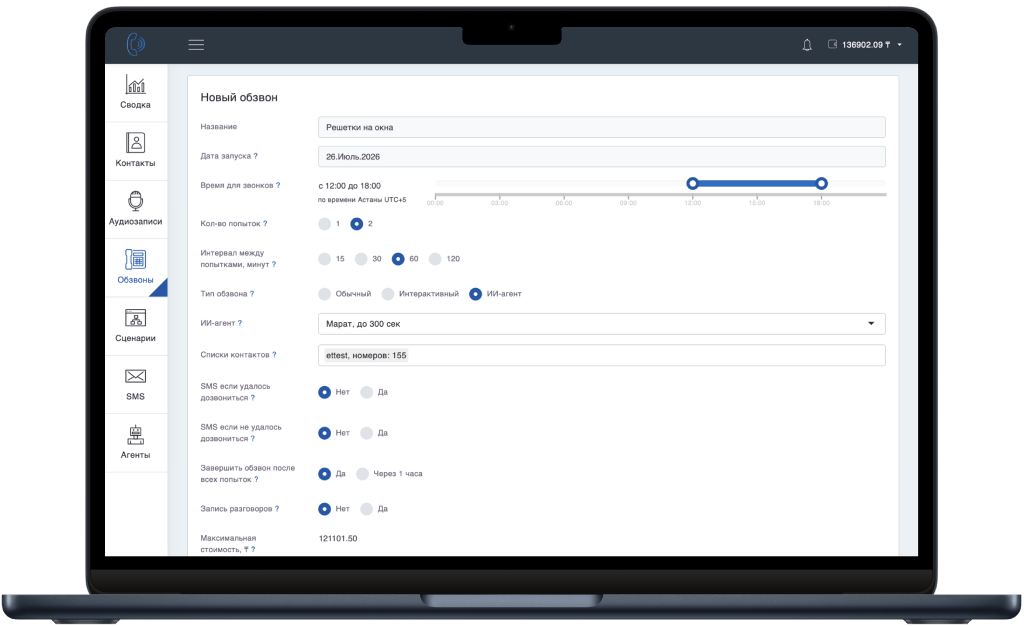
The Campaigns section → “Create”. Choose the “AI agent” type, then select the contact list you uploaded and your agent. This is also where you set calling hours, the number of call attempts and call recording.
You see the cost before launch: the system calculates the maximum that can be spent. The actual charge will be lower: you pay for the seconds actually talked, and the difference goes back to your balance after the campaign ends.
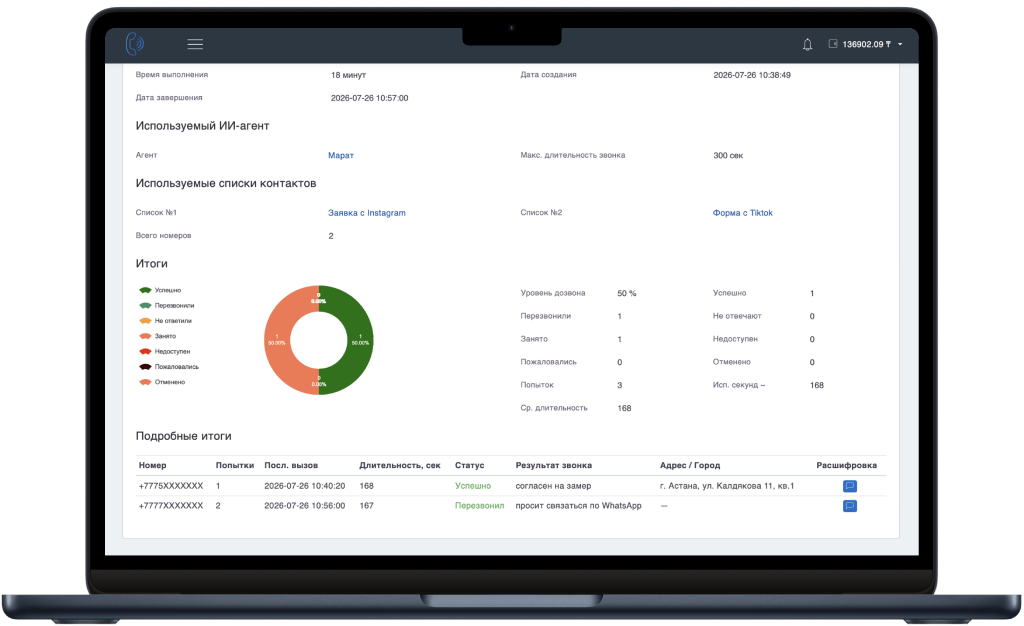
The table fills in as the campaign runs, no need to refresh the page. Next to each number is what the agent found out: city, address, whether a measurement was booked or not. Beside it is a transcript button: you can read the whole conversation and understand why a customer said no.
Everything exports to Excel with one click, along with the transcripts. If you turned on recording, you can also listen to the conversation.
No. You explain the task in plain words in a chat, the way you would to a new employee. The assistant turns it into a conversation scenario. No flowcharts or code needed.
Usually 10–15 minutes: choose a voice, give it a name and describe the task in a chat. The longest part is thinking through what exactly the agent should say and ask; the setup itself is quick.
Yes, test calls are free. The agent will call you right in your browser, you talk to it like a regular contact and immediately see the transcript and the collected data.
Yes. You set the message text in advance, and the agent decides when to send it, for example when the customer asks for details or contacts. The SMS text is fixed; the agent doesn’t rewrite it.
Yes. The agent can send a GET or POST request to your server right in the conversation to check a balance, product availability or request status, and read the answer to the customer using a phrase template you set.
For other questions, see the general FAQ.
Test calls are free: hear how it talks before it calls your customers.
Start free →